









How to Restart My iPhone (US Guide) – Easy Steps for Every Model
If your iPhone is frozen, running slow, or an app keeps crashing, restarting it is usually the quickest fix. A simple reboot clears temporary glitches, refreshes background processes, and improves performance — without deleting your data.
Table of Contents
- Restart iPhone (Face ID Models)
- Restart iPhone (Home Button Models)
- Force Restart iPhone
- Restart Without Buttons
- Troubleshooting
- Performance Tips
- FAQs
How to Restart iPhone (Face ID Models — iPhone X and Later)
If your iPhone does not have a Home button:
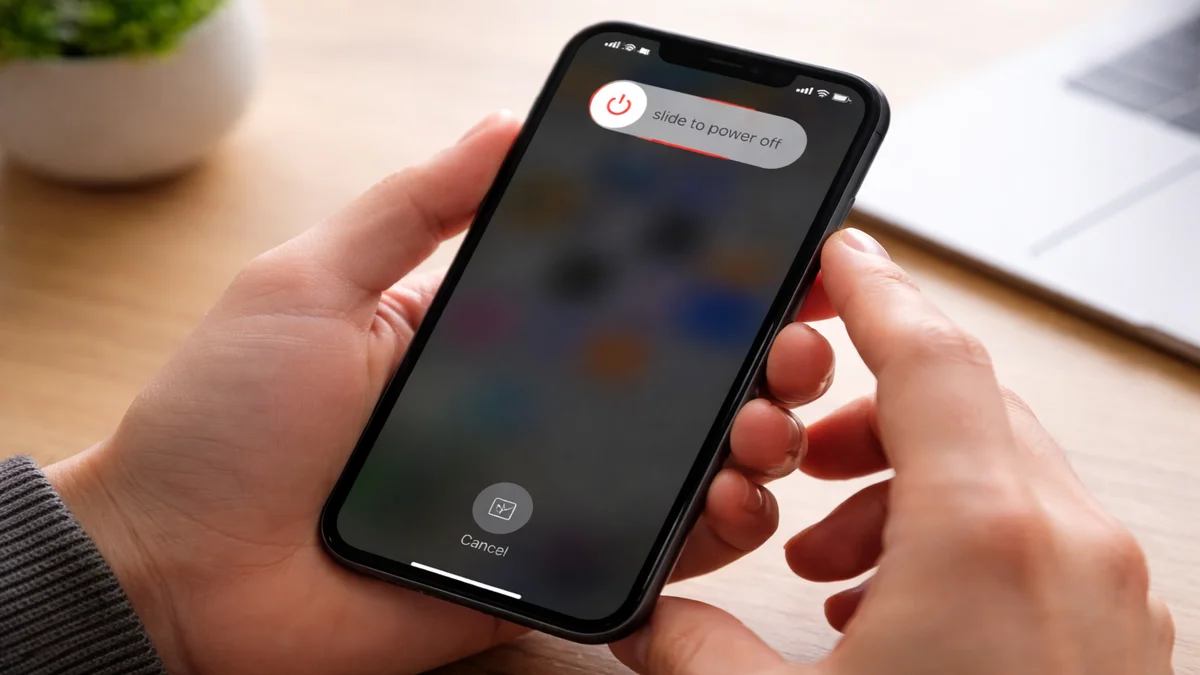
- Press and hold the Side button and either Volume button.
- When the power-off slider appears, drag it.
- Wait 20–30 seconds.
- Press and hold the Side button until the Apple logo appears.
This method works for newer Face ID models like iPhone 11, 12, 13, 14, and 15.
How to Restart iPhone (Models with Home Button)
- Press and hold the Top or Side button.
- Slide to power off.
- Wait a few seconds.
- Press and hold the same button until the Apple logo appears.
Restarting will not delete your apps, photos, or messages.
How to Force Restart iPhone (If It’s Frozen)
If your iPhone screen is stuck or not responding, a force restart can help.
For iPhone 8 and Later:
- Press and release Volume Up.
- Press and release Volume Down.
- Press and hold the Side button until the Apple logo appears.
For iPhone 7 / 7 Plus:
Press and hold Volume Down + Side button together.
For iPhone 6s and Earlier:
Press and hold Home + Top (or Side) button together.
If freezing happens often, read our detailed guide on Why iPhone Keeps Freezing and How to Fix It.
How to Restart iPhone Without Buttons
- Go to Settings.
- Tap General.
- Scroll down and tap Shut Down.
- Slide to power off.
You can also enable AssistiveTouch via Settings > Accessibility > Touch.
What to Do If Restarting Doesn’t Fix the Problem
1. Update iOS
Go to Settings > General > Software Update.
See our full guide here: How to Update iOS on iPhone.
2. Free Up Storage
Delete unused apps or large files. Keep at least 10–15% storage free.
Read: How to Free Up iPhone Storage.
3. Contact Official Support
If your iPhone still won’t turn on in the United States, contact Apple Support or visit an Apple Store.
For a technical breakdown of force restarting, see How-To Geek’s detailed guide.
Tips to Keep Your iPhone Running Smoothly
- Restart once a week.
- Install iOS updates promptly.
- Keep storage space available.
- Avoid constantly closing apps.
Frequently Asked Questions
Will restarting my iPhone delete anything?
No. Restarting only reboots the system and does not erase your data.
How long should I wait before turning it back on?
Wait at least 20–30 seconds after shutting it down.
What should I do if my iPhone won’t turn on?
Try a force restart first. If that fails, charge your device for 30 minutes and try again. If the issue continues, contact Apple Support in the US.
About The Author