








white dots on ipad screen
If you’re noticing a white dot or a bright patch on your iPad display, you’re not alone. These “white dots on iPad screen” issues range from a single stuck pixel to larger bright spots caused by backlight or pressure problems. This guide explains what causes them, how to diagnose the issue, safe DIY steps, and when to consider professional repair.
What causes white dots and bright spots on iPad screens
- Stuck or hot pixels: One or a few pixels stay lit, often seen as a tiny “white dot on iPad screen” on dark backgrounds.
- Backlight hotspots: Uneven backlight diffusion layers or pressure on the LCD can create a brighter patch (often called “bright spot iPad”).
- Pressure damage: A case, keyboard, or localized pressure can permanently compress layers, causing bright areas.
- Backlight bleed: More glow near edges or corners on dark screens; normal in small amounts, problematic if severe or patchy.
- Dust/contamination: Rare, but particles under the panel can cause a small bright speck or halo.
- Liquid ingress or heat stress: Past moisture or excessive heat can deform layers and create bright spots.
Small, isolated dots typically indicate pixel-level issues, while larger, hazy patches are more consistent with backlight diffuser or pressure problems. Identifying which one you have helps you pick the right fix.
Quick checks to confirm if it’s hardware or software
-
Clean and inspect
- Wipe the screen and remove any screen protector or case that might press on a single area.
- Check if the “dot” moves (surface dust/reflection) or stays fixed (panel issue).
-
Screenshot test
- Take a screenshot (Top + Volume Up, or Home + Power).
- View the screenshot on another device. If the dot appears in the screenshot, it’s software (rare). If it does not appear, it’s a hardware/display issue.
-
Pixel test
- Open a full-screen solid color (white, black, red, green, blue) in Safari or a pixel test app.
- If a tiny point stays bright across colors, it’s likely a stuck/hot pixel. If a patch looks brighter, it’s a backlight hotspot.
-
Brightness and color settings
- Turn off True Tone and Night Shift (Settings > Display & Brightness).
- Slide brightness from low to high. Backlight hotspots are more visible at medium-high brightness.
- Update iPadOS and check again.
-
Remove accessories
- Detach keyboards and cases to eliminate pressure points.
- If the spot fades when accessories are off, the accessory was applying pressure.
Step-by-step fixes you can try
For a stuck/hot pixel (tiny dot)
- Gentle on-screen color cycling: Display rapidly changing colors full-screen for 10–15 minutes. This can sometimes revive a stuck pixel on LCD panels.
- Avoid “massage” methods: Pressing the display can worsen damage and create permanent pressure marks.
For a small bright patch (backlight hotspot)
- Reduce strain: Remove any hard case, keyboard cover, or magnetic accessory near the spot.
- Mitigate visibility: Use True Tone and lower brightness to make the bright spot less noticeable while you plan repair.
Software-related artifacts
- Update and reset: Update iPadOS, restart the device, and Reset All Settings (Settings > General > Transfer or Reset iPad > Reset).
When to stop DIY
- If the spot is spreading, there’s a visible dent/bend, or liquid damage is suspected—seek professional help. Hardware bright spots typically require a display replacement.
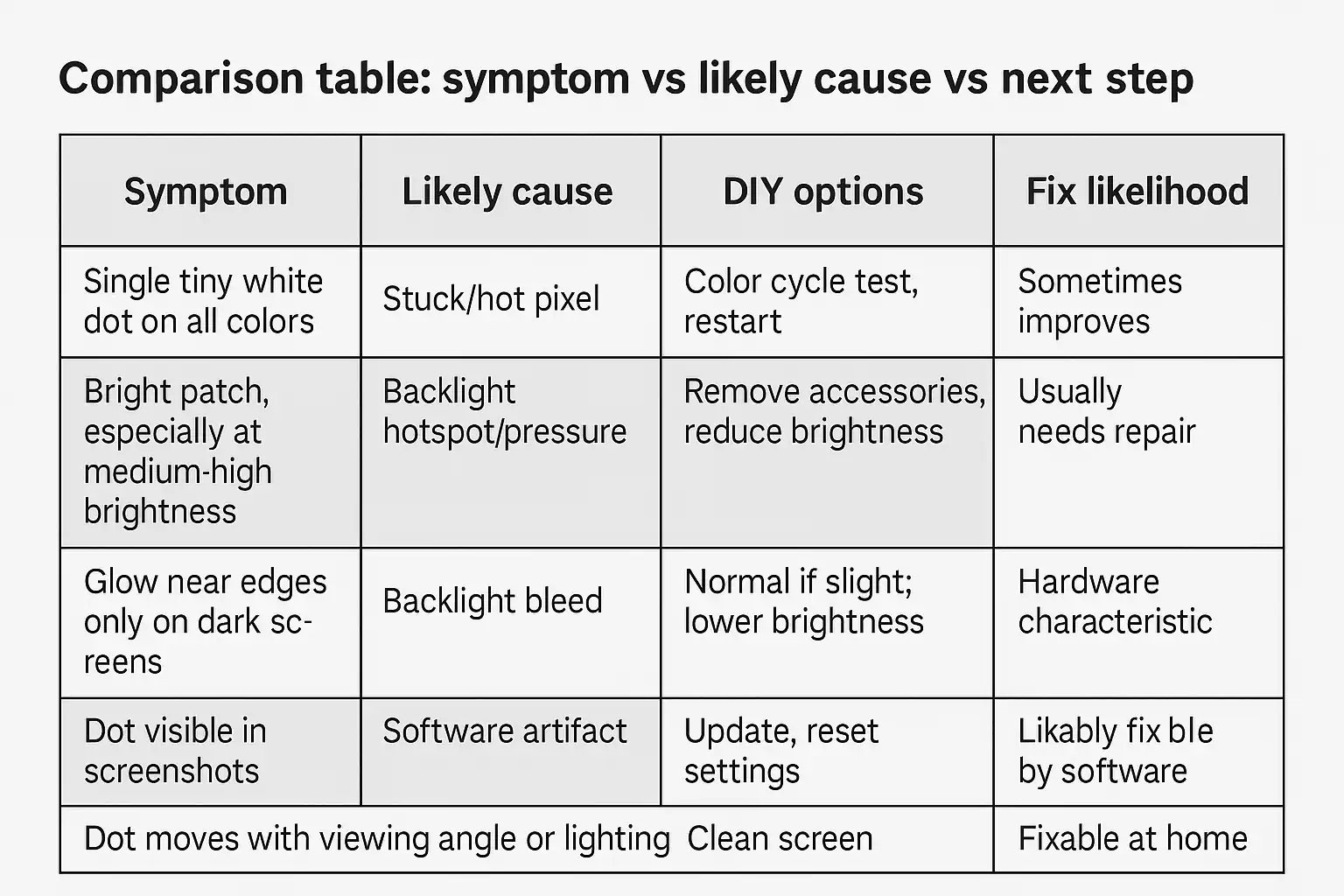
Comparison table: symptom vs likely cause vs next step
| Symptom | Likely cause | DIY options | Fix likelihood |
|---|---|---|---|
| Single tiny white dot on all colors | Stuck/hot pixel | Color cycle test, restart | Sometimes improves |
| Bright patch, especially at medium-high brightness | Backlight hotspot/pressure | Remove accessories, reduce brightness | Usually needs repair |
| Glow near edges only on dark screens | Backlight bleed | Normal if slight; lower brightness | Hardware characteristic |
| Dot visible in screenshots | Software artifact | Update, reset settings | Likely fixable by software |
| Dot moves with viewing angle or lighting | Reflection/debris | Clean screen | Fixable at home |
bright spot ipad pro
Many owners report a “bright spot iPad Pro” that appears as a circular light patch, often away from the edges. Common triggers include:
- Pressure or flex: Frequent stylus or typing pressure in the same area.
- Backlight diffuser distortion: Layers shift or compress over time.
- Known patterns: Some older Pro models developed a small hotspot near the lower center.
What to do
- Rule out accessories: Remove cases, keyboards, and magnetic mounts.
- Document the issue: Note exact location, brightness level where it’s most visible, and whether it’s visible on different backgrounds.
- If persistent: A display assembly replacement is the durable fix. Apple or an authorized provider will replace the entire module.
Model-specific notes
ipad air white spot
- What you’ll see: A bright patch that becomes obvious on gray/white backgrounds at higher brightness. Sometimes appears after long-term case pressure.
- Try first:
- Remove accessories and any protector that could amplify pressure.
- Update iPadOS; toggle True Tone/Night Shift to test visibility.
- Perform the screenshot test.
- Likely resolution: If the spot remains, the LCD/backlight stack is affected and needs a professional screen replacement.
iPad Pro models
The Pro lineup uses laminated LCD displays (pre-OLED generations). White spots generally indicate a backlight/diffuser or pressure-related issue rather than a software bug.
ipad pro 11 white spot
- What you’ll see: A small bright patch visible on light backgrounds, often unchanged by software settings and most visible between 40–80% brightness.
- What helps:
- Remove any hard case or magnetic accessory that could flex the panel.
- Use color cycling only if you suspect a tiny stuck pixel; it won’t fix a larger hotspot.
- Likely resolution: Professional display replacement. Back up your data before service.
Repair options, costs, and warranty
- AppleCare+:
- If you have AppleCare+, accidental damage is serviced for a fee (commonly around $49 for iPad; verify current pricing with Apple).
- Hardware defects outside accidental damage may be covered under warranty.
- Out-of-warranty:
- Apple or Authorized Service Providers replace the full display assembly. Pricing varies by model and region; check Apple’s official iPad repair pricing page.
- Independent repair shops may be cheaper but confirm they use quality parts and provide a warranty.
- What to prepare:
- Backup: iCloud or Finder/iTunes backup before any repair.
- Documentation: Serial number and proof of purchase.
- Evidence: Photos/video documenting the spot under different brightness levels.
Prevention tips
- Avoid localized pressure: Don’t stack heavy items on the iPad and use a case that doesn’t press on one area.
- Mind heat: Don’t leave the device in hot cars or direct sun for long periods.
- Use quality accessories: Poorly fitting cases or rigid keyboard covers can create pressure points.
- Clean carefully: Use a soft cloth; never press hard on the panel.
Sources
FAQs
Is a white dot the same as a dead pixel?
A “white dot on iPad screen” is usually a stuck/hot pixel (always on). A dead pixel is typically black. Larger bright patches are backlight hotspots rather than single pixels.
Can software updates fix a bright spot?
Updates can fix visual artifacts but not true hardware bright spots. If the dot doesn’t show up in screenshots, it’s hardware.
Will a screen protector cause a bright spot?
Not directly, but debris trapped under a protector can create a visual artifact. Remove and reseat to test.
Is it safe to keep using the iPad?
Yes, but if the spot grows or you see new light patches, seek repair to prevent further damage.
Can I press the screen to fix it?
Do not press or “massage” the area. This often worsens the issue.
How do I decide between DIY and repair?
If the issue is a single stuck pixel, try color cycling. If it’s a larger bright patch that persists through tests, plan for a professional display replacement.
About The Author