







White spot on iPhone screen — clear, simple fixes (iPhone white spot on screen, iPhone white spots on screen, white spot on screen iPhone, white patch on iPhone screen)
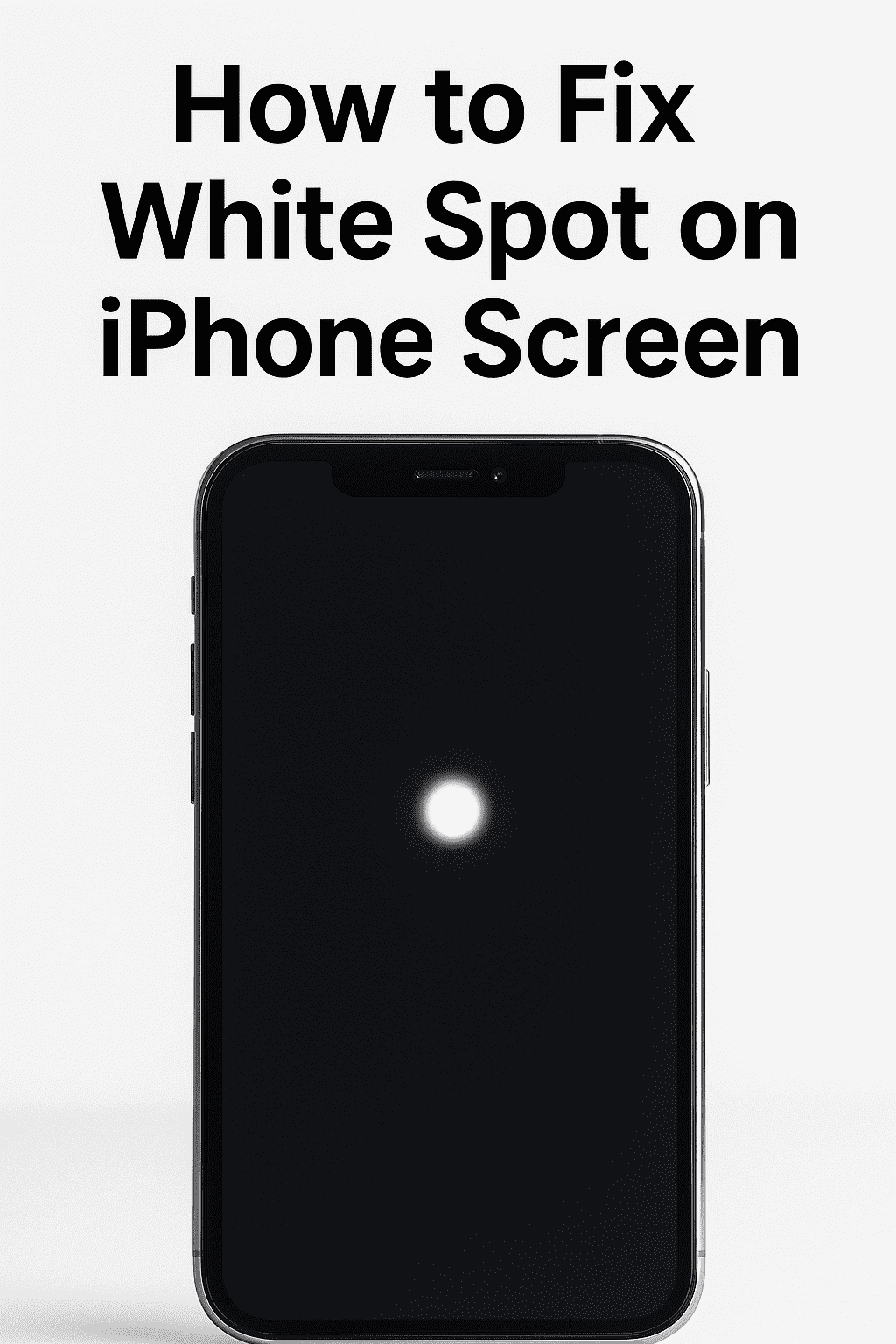
Do you see a white spot on iPhone screen, a bright dot, or a white patch on iPhone screen? Maybe iPhone white spots on screen or a single iPhone white spot on screen? Here’s a simple, step-by-step guide to help you diagnose the cause and apply the best fix.
Quick checks to try first
1. Take a screenshot. If the screenshot also shows the white spot, that means the issue is likely software-based. 2. Remove the case and screen protector. A trapped dust particle or bubble can look like a white spot. 3. Turn off AssistiveTouch / Dwell Control. Sometimes what seems like a white dot is just an accessibility button.
Step-by-step fixes for white spot on screen iPhone
1. Restart the phone
Turn your iPhone off and on again. This resolves many minor software glitches that cause display artifacts.
2. Update iOS
Go to Settings → General → Software Update. Install the update if available. Some display bugs are fixed in new iOS releases.
3. Turn off accessibility helpers
Go to Settings → Accessibility → Touch → AssistiveTouch and switch it off. Also check any Dwell Control or pointer settings. A misplaced dot might simply be a hidden control.
4. Remove screen protector + clean
Lift off your screen protector carefully, clean the screen with a soft microfiber cloth, then reapply or replace the protector. Many cases of a little white spot on iPhone screen are just bubbles or dust.
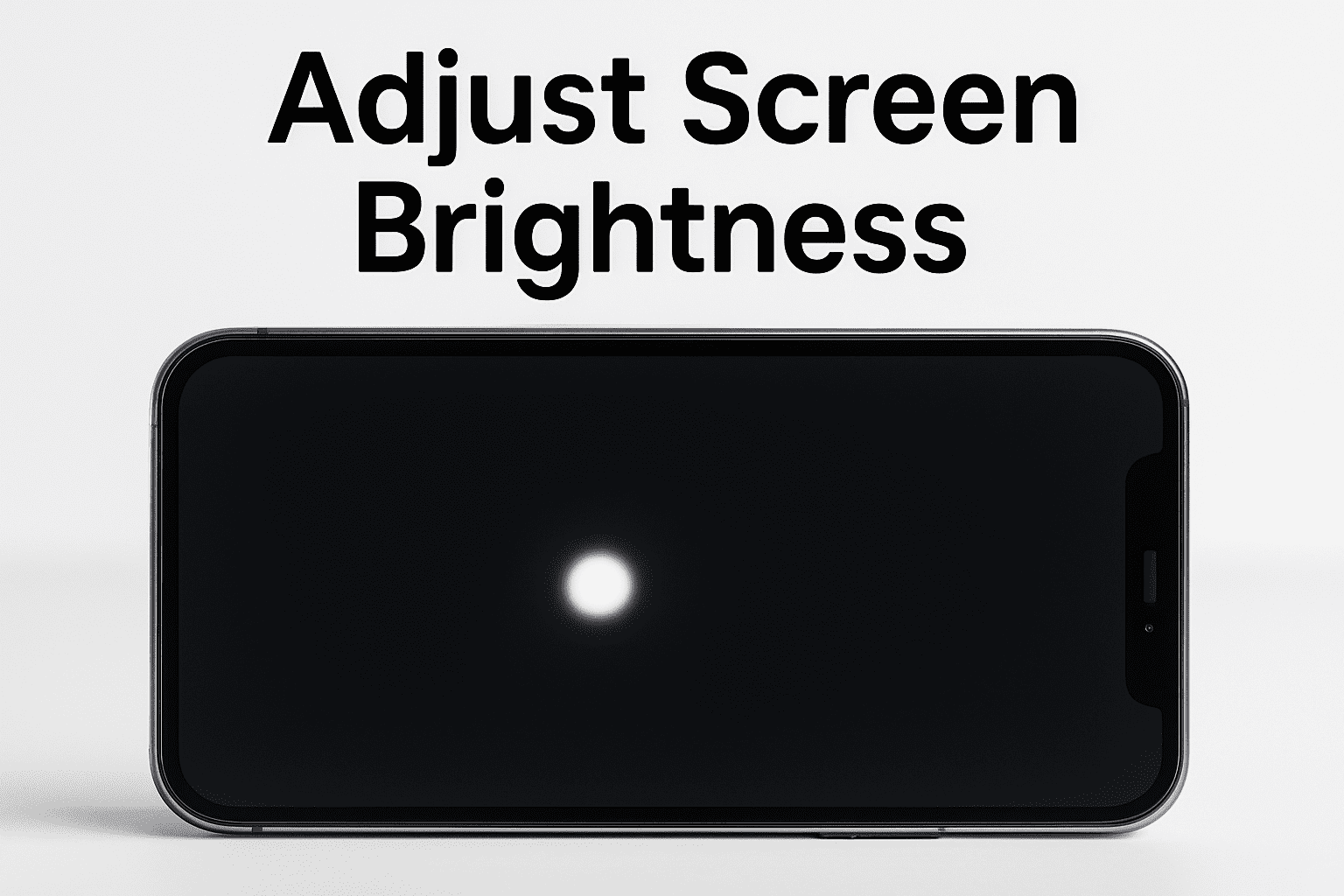
5. Use a pixel-fixer tool (for tiny dot only)
If the white spot is just one stuck pixel, try using apps or online tools that flash colors over that area for a few minutes. It may unstick the pixel.
6. Show a black image
Open a full black image full screen. If the white spot remains visible, the cause is likely hardware — a backlight or panel issue.
7. Gentle massage (if you’re careful)
Some users report success by gently rubbing around (not directly on) the spot to relieve internal pressure. Do this lightly and stop if things change or worsen.
8. Check for battery swelling and pressure
If your phone looks slightly bent, or the screen is lifting at edges, the battery might be swelling. That pressure can push up and cause pale patches or bright spots. If you suspect swelling, power off and seek repair — it’s a safety risk.
9. Professional repair or screen replacement
If the spot remains after all the above and shows in a screenshot test or black screen test, then the display panel or backlight likely needs repair. Go to a trusted repair shop or an authorized service provider for screen replacement.
Case note: iPhone XR white spot on screen
On the iPhone XR white spot on screen, pressure marks or backlight faults are common because of its LCD construction. Follow the same steps above. iFixit notes that battery swelling and internal pressure can produce hazy patches or bright spots as well.
When to stop DIY and get help (iPhone white spots on screen — pro time)
• The spot is still there after all steps.
• Screenshot is clean (hardware cause).
• The case is warped or the screen lifts slightly.
• The phone is unusually hot or you smell something odd.
If you see any of these, stop and see a professional.
Safety reminders
• Always back up your data before repair work.
• Don’t press too hard or pry inside if you’re not trained.
• If the battery appears bulged or swollen, power off immediately and get service.
FAQs
Q — Can a white spot vanish on its own?
A — Yes, if it’s a software glitch, an AssistiveTouch dot, or a bubble under a protector. Hardware spots usually stay.
Q — Will replacing the screen fix it?
A — Yes, if the panel or backlight is damaged. But if frame pressure or battery swelling is the cause, that must be fixed too.
Q — Is this covered by Apple warranty?
A — If it’s a manufacturing defect and your iPhone is under warranty or AppleCare+, Apple may repair or replace it. Damage from misuse or swelling often isn’t covered.
Q — How urgent is a white patch from battery swelling?
A — Very. If the screen lifts or the case is bulged, power off and get professional service immediately; it’s a safety hazard.
Related articles from our blog
- Apple’s Foldable iPhone 2026: What We Know So Far
- iPhone 17 vs iPhone 16: New Features & Differences
- Samsung Galaxy S26 Ultra Review & Release Date
Sources
About The Author